You've turned on MFA for cloud mail, ticked the compliance box, and moved on. Then someone with a stolen password connects through the VPN, opens RDP to a file server, and never sees a second prompt. Nothing failed. The prompt was never placed on that route.
That's the central problem with Two Factor Authentication Active Directory projects. Active Directory is not one sign-in screen. It's a set of protocols, gateways, federation endpoints, and legacy bindings, and an attacker only needs one that still accepts a password alone. Treat this as a coverage problem, prove every path is closed, and the rollout holds. Treat it as a prompt, and it won't.
Map Every Path That Reaches Active Directory
Say a company enables MFA for Microsoft Entra cloud access and reports that Active Directory is now protected. A remote worker's password is phished that same week. The attacker doesn't touch the cloud mailbox. They use the VPN profile, reach an internal server over RDP, and sign in with the password they already have.
That scenario works because traditional on-premises Active Directory relies on Kerberos and NTLM, which do not natively perform MFA, so enabling MFA for cloud access doesn't automatically protect Windows logons, VPNs, LDAP, legacy applications, or administrative protocols, as the Cayosoft guide to Active Directory MFA explains. It also notes that CISA warns legacy authentication protocols cannot support MFA and recommends identifying application dependencies before blocking them.
What Counts as a Path
A path is any place a credential gets checked against AD. That includes a workstation logon, a VPN concentrator asking RADIUS, an AD FS relying party, an LDAP bind from a multifunction printer, and a service account starting a scheduled job. If it validates against the directory, it belongs in your inventory.
"MFA enabled" doesn't necessarily mean "AD protected." You have to check route by route.
Use this table as your starting inventory. Your environment will have additions, especially around cloud synchronization and older line-of-business apps.
| Authentication path | Typical protocol | Can MFA cover it directly? | First action |
|---|---|---|---|
| Interactive domain logon at workstations | Kerberos, NTLM | Not natively; use certificates or Windows Hello for Business | Enable certificate or passkey sign-in for admins first |
| VPN access | RADIUS, SAML via AD FS | Yes, at the VPN or federation layer | Enforce MFA on the VPN for every remote user |
| RDP and remote desktop gateways | Kerberos, NTLM | Yes, at the gateway only | Add MFA at the gateway and block direct RDP |
| Privileged admin sessions | Kerberos, admin tooling | Yes, through smart card or PAM controls | Enforce on domain and enterprise admins before anyone else |
| AD FS and federation endpoints | SAML, WS-Federation, OAuth | Yes, through access policies per relying party | Review each relying party and set MFA as a requirement |
| LDAP simple binds | LDAP simple bind | No, a password-only bind cannot carry a second factor | Require LDAPS or SASL binds and retire simple binds |
| Legacy apps using basic authentication | NTLM, basic auth | No | Replace the app or isolate it behind a gateway |
| Service accounts | Kerberos | No, unless a compensating control is in place | Document each account, set an owner, and rotate credentials |
Reading the Table Honestly
Interactive logon is where teams get stuck. You can't bolt a push prompt onto Kerberos. The practical answer is to change what the first factor is, using certificate-based logon or Windows Hello for Business tied to a device, so the credential itself is cryptographic rather than a typed secret.
VPN and RDP are easier wins because a gateway sits in front. Put the check at the gateway, then close the side door. MFA on the RD Gateway means little if port 3389 is still reachable directly from another subnet or the internet.
For AD FS, review every relying party trust individually. A global policy that looks correct often has exceptions added for one application years ago. Those exceptions are exactly where password-only access survives. Our overview of how Windows Active Directory fits together covers the domain and trust basics if your team needs a refresher before this work.
Paths Nobody Wants to Own
LDAP simple binds and service accounts are the uncomfortable rows. A simple bind sends a password and nothing else, so there's no place to add a factor. Your options are to move the application to LDAPS or SASL, give it a tightly scoped account, restrict it by network, and log every bind. Don't exempt it forever.
- LDAP simple binds: Find them in domain controller logs, contact each application owner, and set a retirement date.
- Service accounts: Record the owner, the host, and the purpose, then rotate credentials and deny interactive logon.
- Legacy basic auth: Isolate the app behind a gateway or replace it, rather than weakening policy for everyone.
Before you configure anything, write down every path in your own environment with a named owner for each row. If a row has no owner, it has no fix date either.
Choose a Second Factor That Resists Phishing
The rule I use is simple. Give each account class the strongest method its devices and workflows can support, and don't let convenience set the standard for administrators.
In June 2017, the U.S. National Institute of Standards and Technology published Special Publication 800-63-3, and NIST's Digital Identity Guidelines superseded the earlier SP 800-63-1 and SP 800-63-2 guidance. The framework treats authentication as more than password validation and covers authenticator management through the full lifecycle, including enrollment, replacement, revocation, and recovery. For AD teams, that means a lost token that stays active is a control failure, not an administrative detail.
What Actually Counts as Two Factors
Two passwords aren't two factors. A password plus a PIN isn't either, because both are something you know. MFA needs two distinct factor types, such as a memorized secret plus a physical cryptographic authenticator you hold, or a biometric check.
Cryptographic authenticators such as FIDO2 security keys, passkeys, PIV or CAC cards, and client certificates are replay-resistant and phishing-resistant because the credential is bound to the legitimate site or device and can't be typed into a fake page. One-time codes are replay-resistant but not phishing-resistant. A user can read a code aloud or enter it on an attacker's page in real time. SMS sits at the bottom for the same reason, with SIM swap risk on top.
| Method | Phishing-resistant | Fit with AD sign-in | Best account class |
|---|---|---|---|
| FIDO2 security key | Yes | Strong, used with Windows sign-in and federation where supported | Domain and enterprise administrators |
| Passkey or Windows Hello for Business | Yes | Strong, device-bound on managed Windows devices | Managed laptop and desktop users |
| PIV or CAC smart card | Yes | Strong, certificate-based logon | Government and regulated privileged accounts |
| Client certificate | Yes | Strong, requires a certificate trust model | Managed devices with a certificate infrastructure |
| Authenticator app with number matching | No | Good for cloud and federated access | Remote staff who cannot carry a key |
| OTP code (TOTP) | No | Limited for interactive logon | Fallback where stronger methods are unavailable |
| SMS code | No | Limited, and vulnerable to phishing | Short-term recovery route only |
Matching Methods to Real People
Managed laptops are the easy population. Windows Hello for Business gives you a device-bound credential accessed with a PIN or biometric, so there's no shared secret to phish and no separate token to carry.
Administrators get hardware keys. The cost is trivial against the value of a domain admin credential, and a key that requires a physical touch stops remote replay outright. Where regulation or existing infrastructure dictates, smart cards do the same job and are already familiar to the users who carry them.
Remote staff who can't carry a key can use an authenticator app, but turn on number matching. A plain approve or deny push invites MFA fatigue attacks, where an attacker who already has the password sends repeated prompts until the user taps approve to make them stop. Number matching forces the user to read a number on the sign-in screen and enter it, which breaks that reflex. Our primer on phishing and social engineering tactics is worth sharing with staff before you roll this out, because fatigue attacks are social, not technical.
Practical rule: Privileged accounts use phishing-resistant methods only. No exceptions for convenience, no SMS fallback.
Keep SMS, if you must, as a time-limited recovery route that expires and gets removed once a stronger method is registered. The moment SMS becomes a permanent second option, attackers will choose it every time.
How to Enable Two Factor Authentication Step by Step
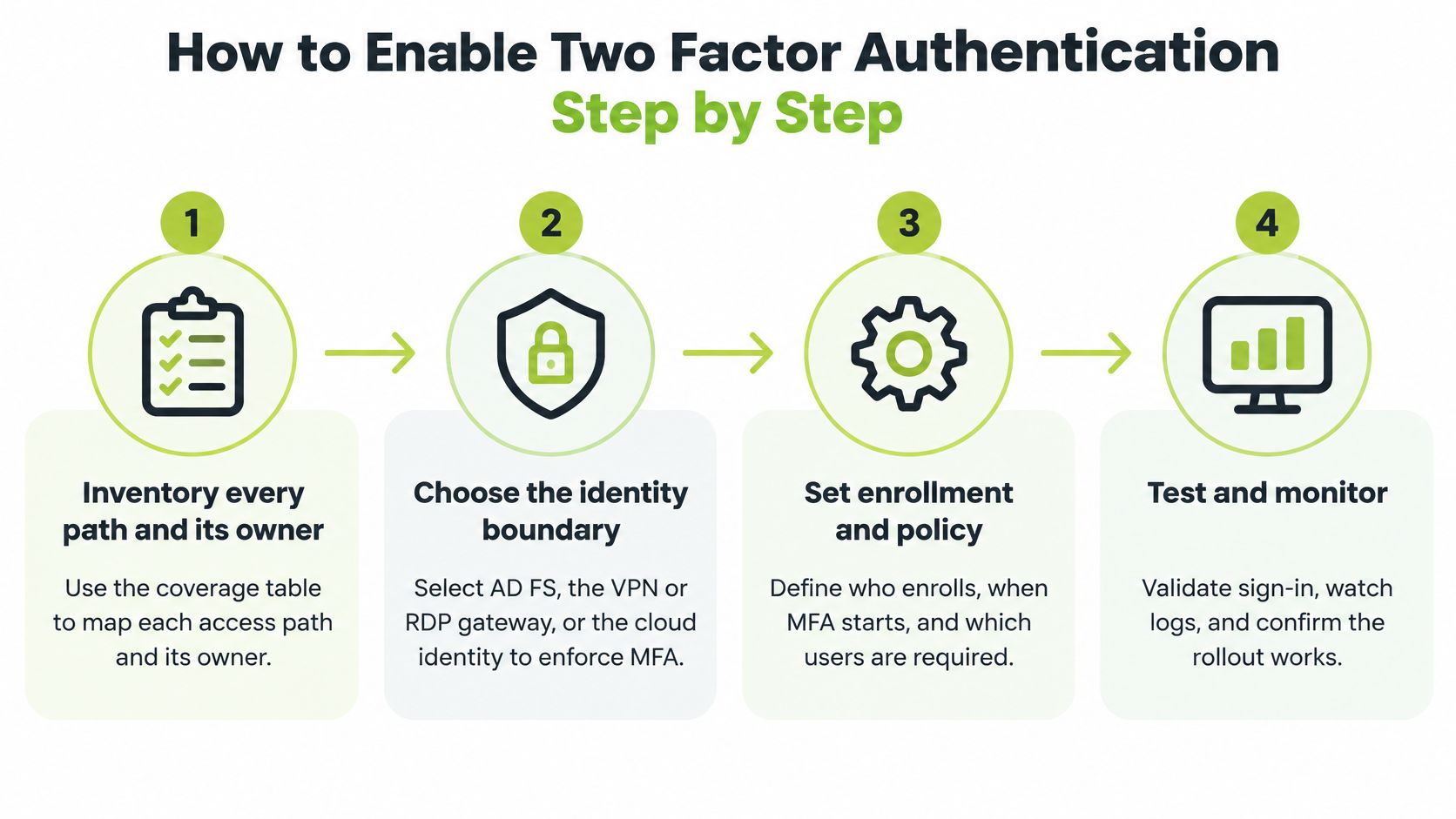
Separate authentication assurance from merely adding a second prompt. The sequence below works whether you enforce through AD FS, a gateway, or a cloud identity provider, and each step names the slip that usually breaks it.
The Seven Steps
Inventory every path and its owner. Use your coverage table and confirm each row against sign-in logs from domain controllers, federation servers, and VPN concentrators. The common slip is trusting documentation instead of logs, which hides the printer, scanner, and old mail client still binding daily.
Choose the identity boundary that will enforce MFA. Decide per path whether enforcement sits at AD FS, the VPN or RDP gateway, or the cloud identity provider. The slip is enforcing at one boundary and assuming it covers the others.
Enrol a pilot group. Start with a small set of administrators plus representative users from each department and device type. Confirm every pilot user registers two independent authenticators before enforcement. Skipping the second registration is what turns a lost phone into a lockout and a rushed help-desk bypass.
Provision certificates or enable Windows Hello for Business. Under Microsoft's documented on-premises certificate trust deployment for Windows Hello for Business with AD FS, users must complete MFA before Windows Hello for Business enrollment, certificates must then be provisioned to users, and smart cards or virtual smart cards serve as certificate-authentication options. The slip is issuing certificates without a renewal and revocation process, so expiry day becomes an outage.
Run policies in report-only mode first. Watch the logs for one to two weeks and read every failure, especially from legacy clients. From this review you learn which applications can't comply. Enforcing before this step means you discover those clients through support tickets instead.
Enforce by role, in order. Domain and enterprise administrators first, then remote access users, then general staff. The slip is leaving service accounts permanently exempt with no owner, no expiry, and no compensating control.
Set up break-glass access. Keep two emergency accounts, store the credentials offline in sealed storage, exclude them from the policy, and alert on every sign-in. Test them. An untested break-glass account that doesn't work during an identity outage is worse than none, because the team planned around it.
What Good Looks Like at Each Stage
During the pilot, expect friction around enrollment, not sign-in. People need help registering a key, understanding why they need two methods, and knowing what to do with an unexpected prompt. Front-load that communication, in writing, before you enforce. It's far cheaper than a Monday morning queue.
Don't count password plus PIN as coverage in your rollout reporting. It's one factor type, and reporting it as MFA gives leadership a number that isn't true.
Test the awkward cases deliberately rather than waiting for them. Run through offline logon on a laptop with no network, an expired certificate, a revoked certificate, help-desk recovery for a pilot user, device replacement, and OTP clock skew. Then try a legacy protocol against a domain controller and confirm it's denied.
You're ready to widen enforcement when administrator sign-ins are consistently challenged, pilot users complete the second factor without help, and the help desk sees no unexpected lockouts for two weeks. If lockouts are still appearing, the pilot is telling you something. Listen to it.
Recovery, Lost Devices and Help Desk Fixes
Recovery is where strong MFA becomes vulnerable. Microsoft's MFA security best practices guidance recommends multiple authentication methods so users retain a backup when a primary method is unavailable, and it identifies number matching as a defense against accidental approvals during MFA-fatigue attacks. Design recovery so it's never weaker than the login it replaces.
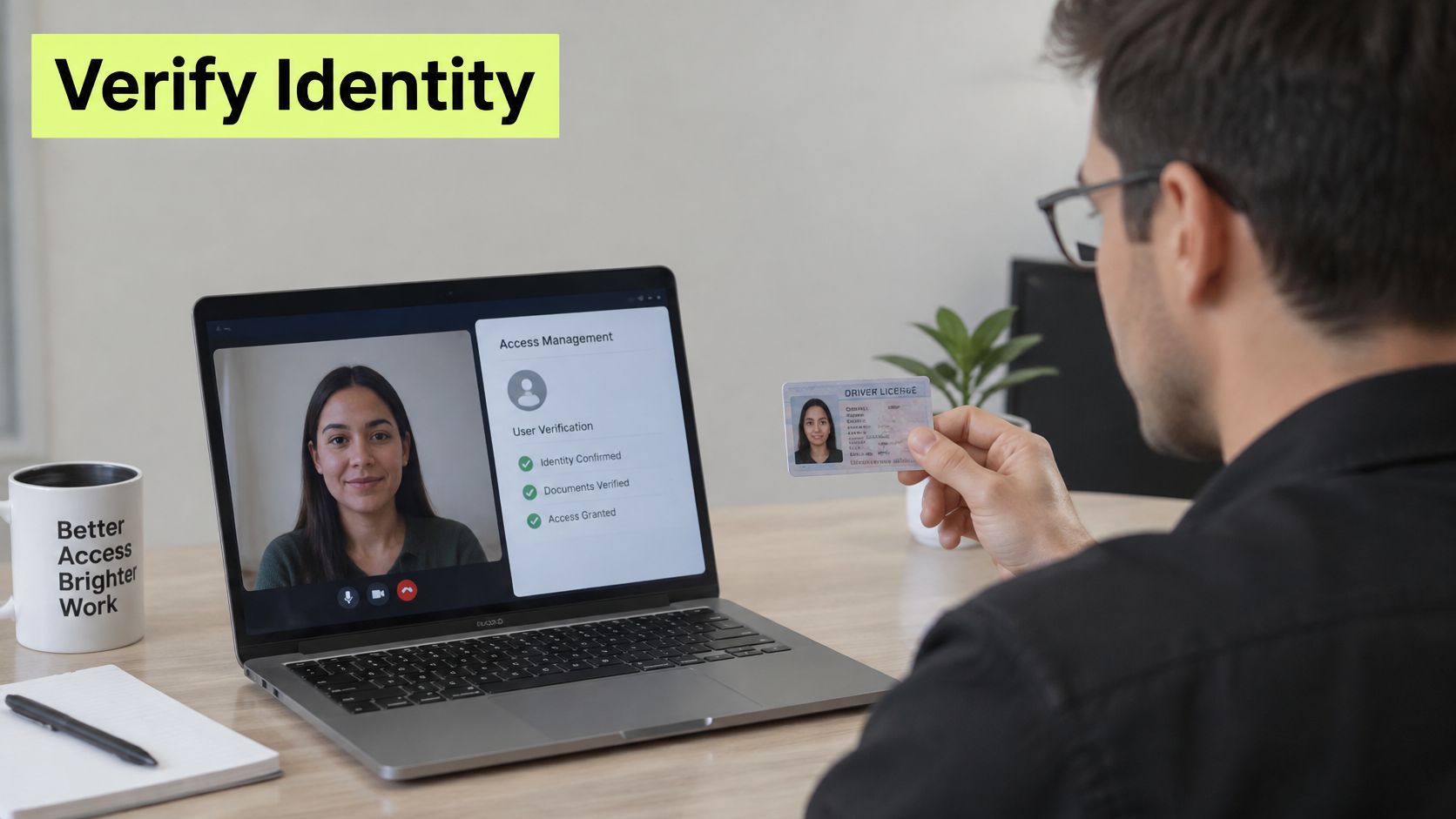
Verify identity with a live check before any reset, not a ticket or an email alone. Issue time-limited replacement credentials, log every reset, and alert on unusual enrolment, such as a second new authenticator registered for the same person in one day.
The image below shows the kind of live identity verification step your help desk should require before reissuing a factor.
The Situations Users Actually Face
A lost device should be routine. The user signs in with their second registered authenticator, enrols the replacement, and you revoke the lost one. If they only ever registered one method, you're doing a full identity check under pressure, which is exactly what attackers count on.
Repeated unexpected prompts mean someone likely has the password. Teach users to deny the request, report it immediately, and expect a password reset. Treat it as an attack in progress, not a nuisance.
Travel without connectivity needs a planned answer, such as offline recovery codes stored in a password manager or a cached Windows Hello sign-in where supported. A suspicious number-matching request they didn't initiate gets declined and reported, every time.
This short video is useful for showing staff what a legitimate prompt looks like, so an unfamiliar one stands out.
Stronger technical MFA can raise risk temporarily if staff don't know these routines. Users invent workarounds, share codes, or pressure support into shortcuts. That is how incidents like account takeover fraud start, through a helpful reset rather than a broken algorithm. Keep the boundary clear too. Your own IT or help desk team owns recovery, because Vigil is an employee training and compliance platform and does not provide antivirus, endpoint protection, remote access, IT helpdesk, or consumer technical-support services.
| Symptom | Likely cause | First fix |
|---|---|---|
| Repeated unexpected MFA prompts | Password known to an attacker | Deny the request, reset the password and report it as an attack |
| Locked out after losing a phone | Only one authenticator registered | Sign in with the second method, re-enrol the new device and revoke the lost one |
| Sign-in fails while travelling offline | No cached Windows Hello sign-in or recovery codes | Use offline recovery codes or the cached sign-in where supported |
| OTP code rejected | Clock skew on the device | Sync the device time and retry |
| Certificate sign-in fails | Expired or revoked certificate | Check expiry and revocation status, then reissue |
| Legacy app fails after enforcement | Basic auth or LDAP simple bind | Check sign-in logs, then replace or isolate the app |
| Help-desk caller asks for a new factor by phone | Weak identity check | Require a live identity check, log the reset and issue time-limited credentials |
Three rules for the help desk. Never enrol a new factor on a phone call alone. Never extend a temporary credential instead of reissuing it. Always call the user back on a number already on file.
Test Coverage and Sign Off the Rollout
Measure before you call it finished. Set your baseline before rollout and report coverage by account class, not one organisation-wide percentage. A single average hides the one class that matters most, because high enrolment among general staff can mask gaps among administrators.
Track weekly during the pilot and monthly afterwards. Your minimum set is enrolment per account class, successful second-factor completions, recovery events, lockouts, help-desk tickets, legacy-protocol exceptions, and privileged-account coverage.
- Enrolment by account class: Shows who still has no second factor at all.
- Recovery events: A rising count points to training gaps or an attack pattern.
- Legacy-protocol exceptions: Every entry needs an owner and an expiry date.
- Privileged-account coverage: The number that decides whether you sign off.
As a reference point, Okta's January 2024 report on phishing-resistant MFA stated that MFA adoption reached 66% among its workforce users, while 91% of administrators used MFA. Treat those as context, not targets. Your privileged accounts need full coverage. An average of 91% leaves a gap an attacker will find.
Run the Bypass Drill This Week
Enrolment numbers don't prove protection. Attempt a password-only logon from a non-compliant device against every route in your path table. Include direct RDP to a server, an LDAP simple bind, an old mail client using basic auth, and a federation relying party you rarely touch.
Any attempt that succeeds becomes a finding with a named owner and a due date. It isn't a note in a spreadsheet. Watch for the usual failures: MFA enforced at the VPN while direct RDP stays open, service accounts exempt with no review, SMS recovery that a caller can talk their way through, and users with only one authenticator registered.
One successful password-only logon during the drill means the rollout isn't done, whatever the enrolment percentage says.
Ownership has to be explicit here. You're responsible for your own workspace, administrator designations, authorized users, configuration, and activities performed through your accounts, so every finding needs a person, not a team name.
The Five Sign-Off Checks
Sign off only when all five pass:
- Every path covered: Each route has an enforced second factor or a dated, documented exception.
- Privileged accounts hardened: Domain and enterprise administrators use phishing-resistant methods only.
- Two authenticators each: Every user has two independent authenticators registered.
- Recovery controlled: Resets require a live identity check, are logged, and issue time-limited credentials.
- Bypass tests fail: Every password-only attempt in the drill is denied.
Then keep it true. Hold a monthly exception review, repeat bypass tests quarterly, and check annually against the NIST SP 800-63 assurance level you need to meet. Staff also need short refreshers on prompt handling and recovery, and we deliver that training inside Slack with no separate portal or password, which keeps it in the flow of work rather than in an annual module people rush through.
Finish with one action. Spend 30 minutes walking your path table with your AD, network, and service-desk owners, record a named owner for each row, and send the completed table to each owner today.
If your rollout is technically sound but staff still approve prompts they didn't request or call the help desk for risky resets, Vigil Security can help you close that gap with short, scenario-based lessons delivered inside Slack on recognising MFA fatigue, reporting suspicious prompts, and handling recovery safely. Bring us your completed path table and we'll help you turn each row into training your teams will finish, with audit-ready evidence to show for it.